
ClassDojo
In this series
- How to Use ClassDojo for Parent Communication
- How to Use ClassDojo Points and Rewards
- How to Use ClassDojo Student PortfoliosYou are here
What are ClassDojo Portfolios?
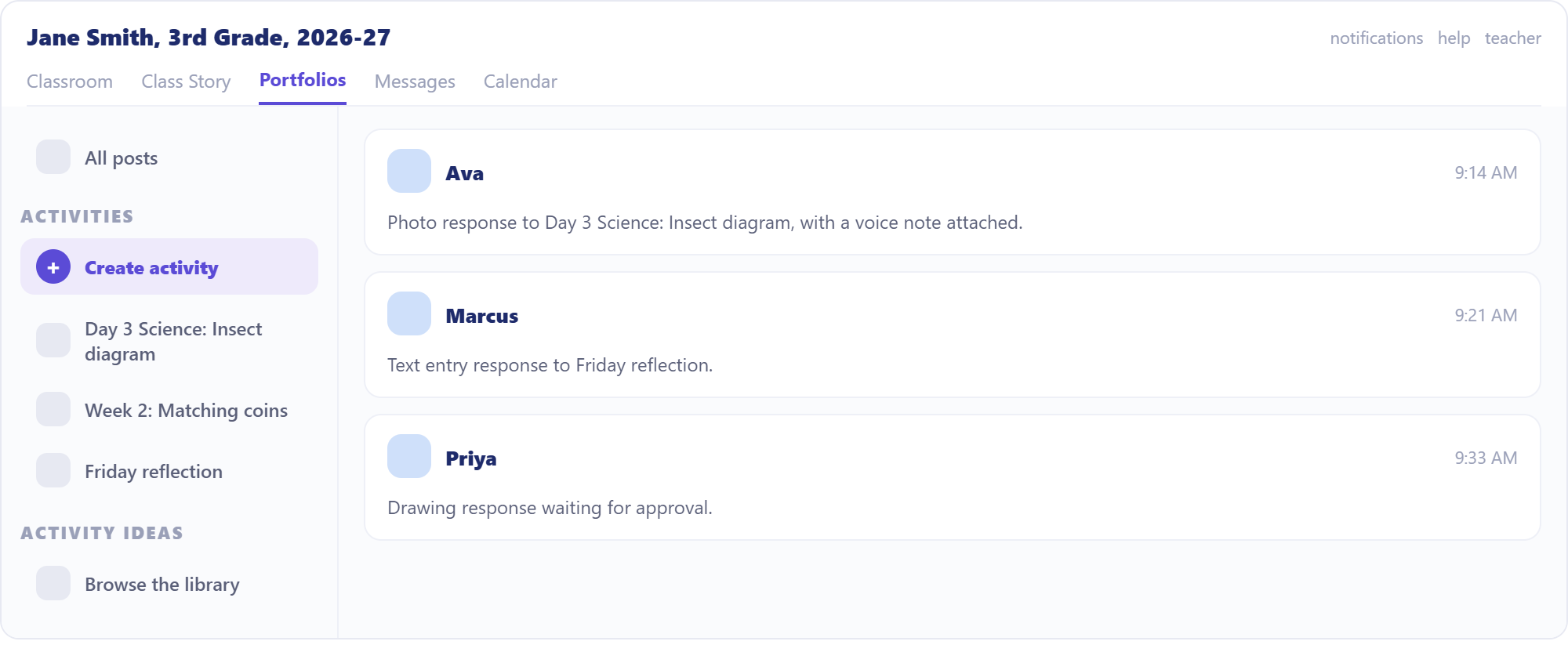
ClassDojo is a free classroom management and family communication platform. You create a class, enter your roster, and assign activities. Activities can include classwork, reflections, or homework sent directly to a student’s device. Each student responds with writing, a photo, a video or a drawing, and every response comes to you for approval before a family member sees it. Each student has his or her own portfolio, and approved responses build it into a year-long record of what that child actually made. ClassDojo keeps that portfolio private to the student, the child’s connected family members, and the teachers on the class.
What are the benefits and educational implications?
A portfolio preserves the work itself. A grade reports a number, while a photograph of a labeled insect diagram documents what the child understood and how that child reached the answer.
Because you review every response before a family does, the feature remains workable in an elementary classroom. You can withhold a half-finished submission, ask the student to extend it, and release the stronger version instead. Families then see work that represents the child, and you retain editorial judgment over what reaches them.
Offering several response formats changes who can demonstrate understanding. A student who writes slowly records a video explanation instead, while a student still acquiring English submits a drawing with a voice recording attached. The underlying thinking is identical, and the format no longer determines who can display it.
- Evidence you can show: An approved response is dated and attached to a named student, which gives you something concrete to open at a conference or an intervention meeting.
- A record that accumulates: Work collects over months, so you and the family can compare September to March rather than discuss a single assignment.
- Families see the work itself: The record reaches home during the week, in the form the child produced, rather than as a letter grade months later.
- Students revisit their own thinking: A student who scrolls back through a portfolio is reviewing evidence of their learning, and self-assessment depends on exactly that habit.
How do you create and assign an activity?
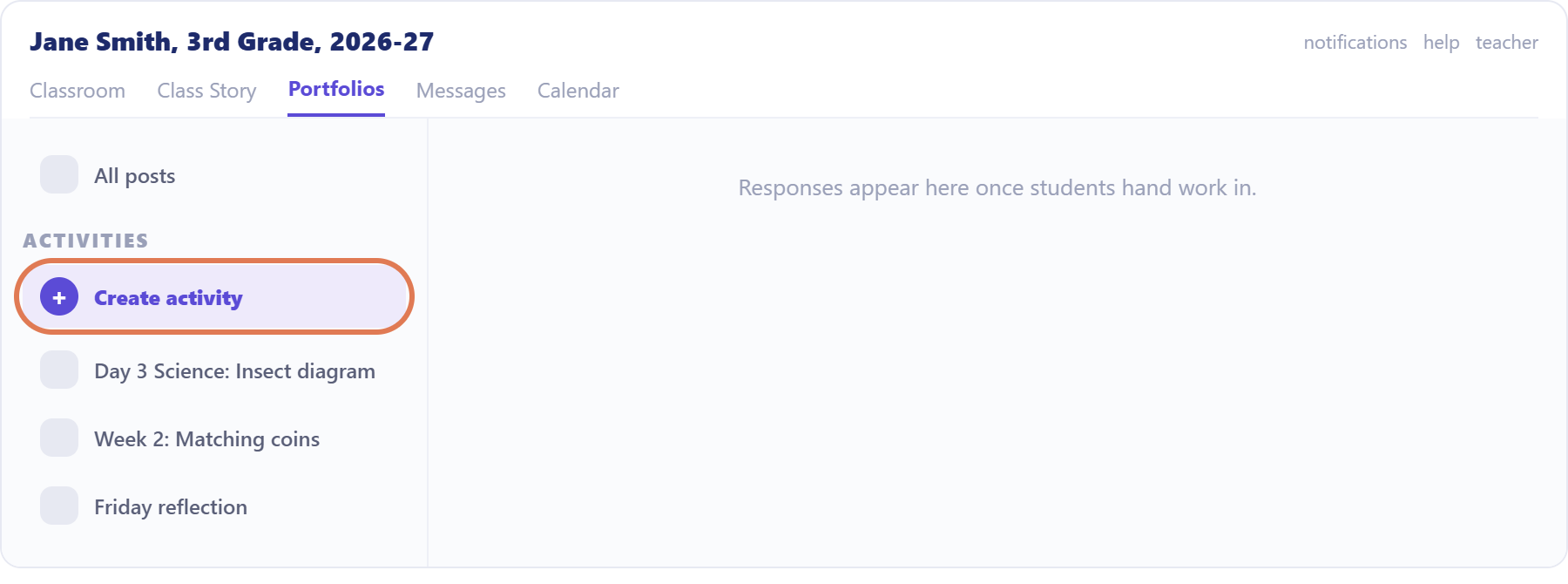
You create activities on the ClassDojo website, and ClassDojo permits assignment from the website only. Open your class and select the Portfolios tab beneath the class name.
Step 1: Where do you start a new activity?
The Portfolios tab retains every activity you have assigned in a list on the left, under Activities, while student responses populate the panel beside it. Select Create activity to open a new one.
Step 2: What goes in the name and the instructions?
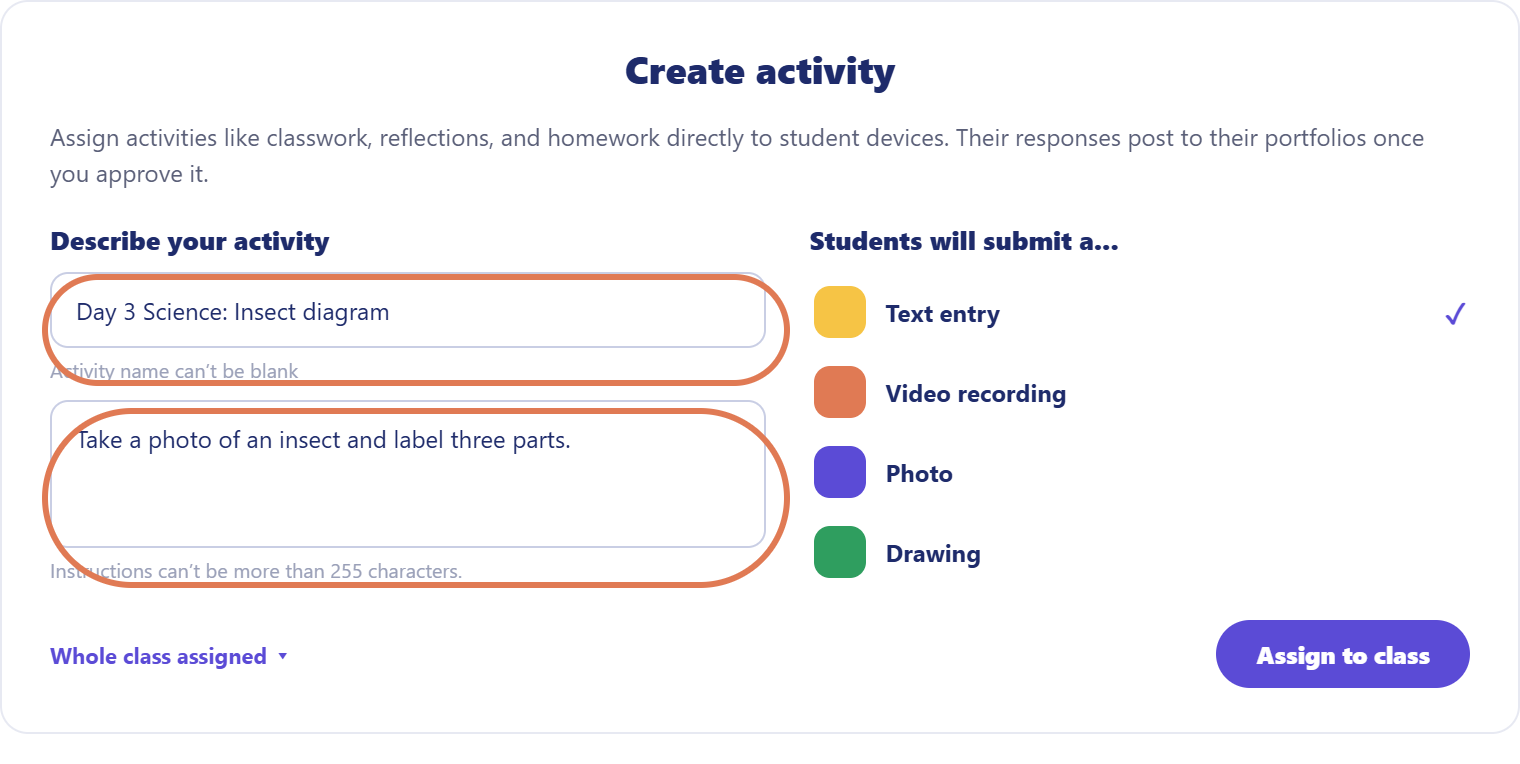
Enter an Activity name a student will recognize in a list, such as “Day 3 Science: Insect diagram”. Write the Activity instructions underneath. Please remember that ClassDojo caps instructions at 255 characters, so the wording has to state the task completely.
Step 3: How do you choose the response type and assign it?
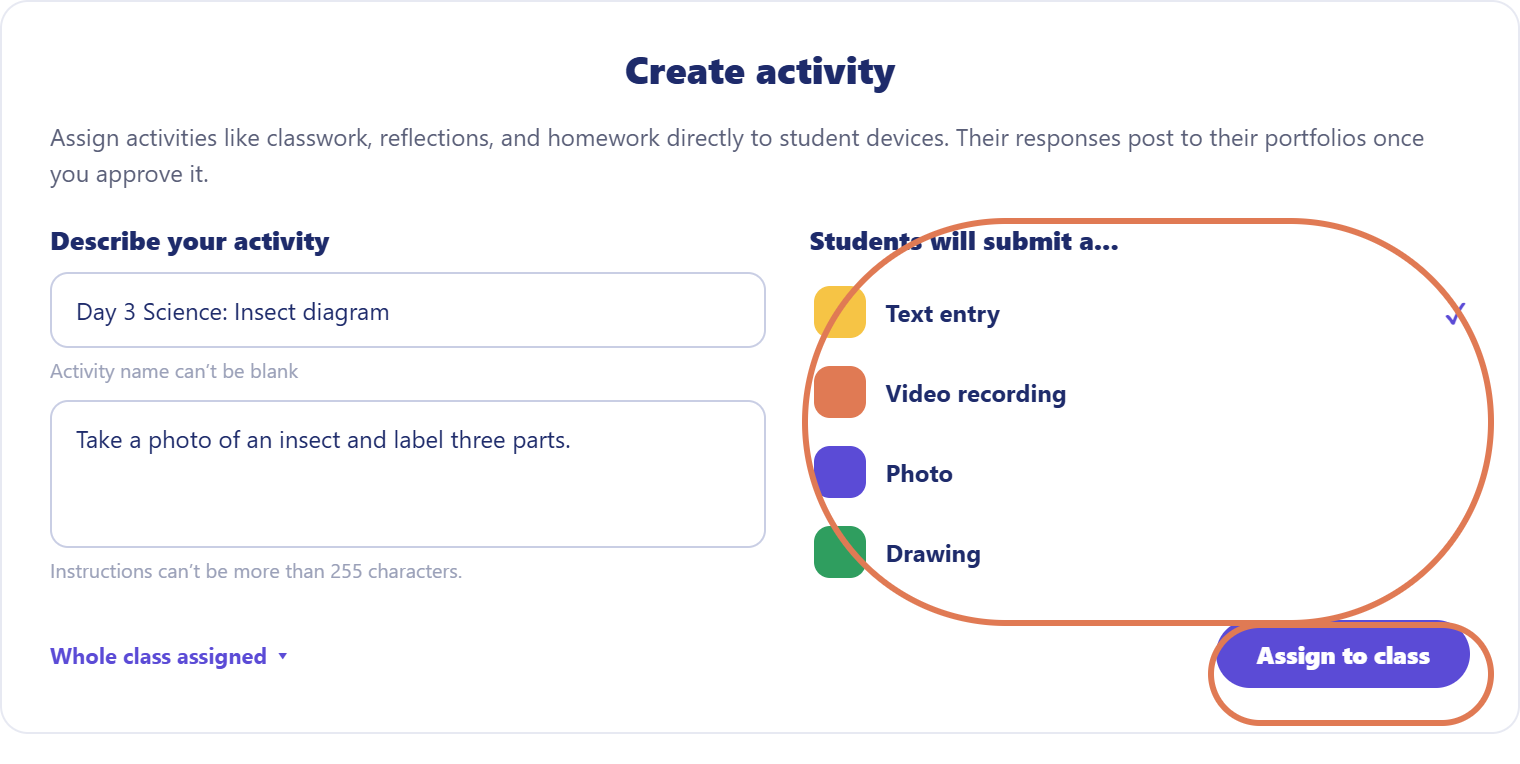
Under Students will submit a… choose one response type. Select Assign to class to send it to everyone, or open the Whole class assigned menu first and pick the students who should receive it. The activity reaches student devices immediately and appears in their To Do list.
Video: Portfolios Overview: a tutorial for ClassDojo teachers (2:45)
ClassDojo’s own walkthrough of the Portfolios tab and the Create activity dialog.
What can students submit, and how do they hand work in?
The five response types differ in what a student produces and in the limits ClassDojo applies to each.
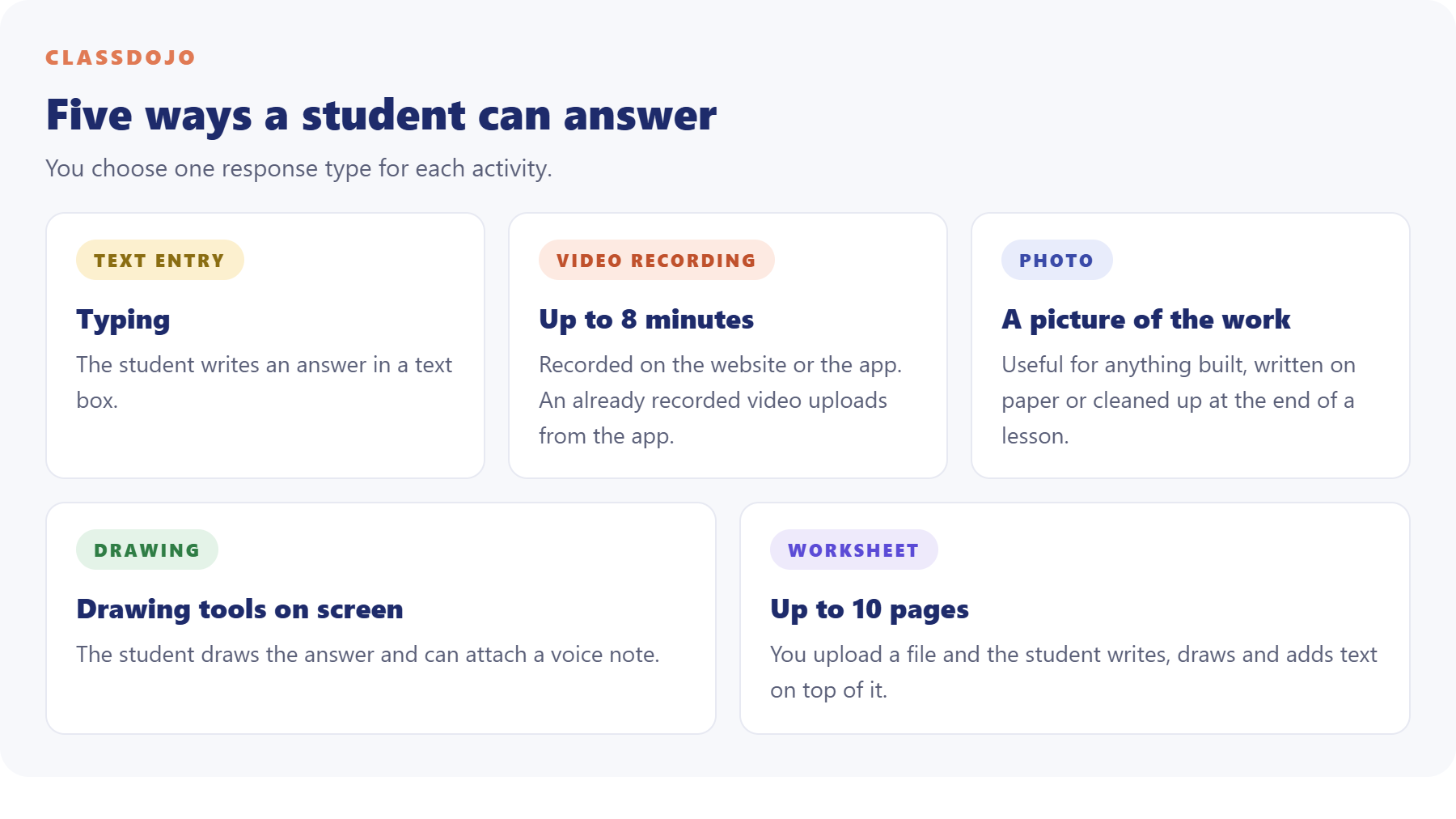
A student locates assigned work under To Do at the top of the Home or Portfolio tab, selects Start, and completes it with the on-screen tools. Save stores a draft the student can finish later, while Hand in sends the work to you. In the app, the paper airplane button does the same.
Students also post to their portfolio independently of any assignment, selecting Journal, Photo, Video, Drawing or File. A student records video of up to eight minutes directly on the website, while the app additionally uploads video already saved on the device.
Video: How students post to their Portfolio on ClassDojo (3:41)
The student side, from the login screen through handing work in.
How do you approve and respond to student work?
Every submission reaches you first. ClassDojo states that teachers must approve student portfolio posts before families receive them, so until you approve a response, you and that student are the only people who see it.
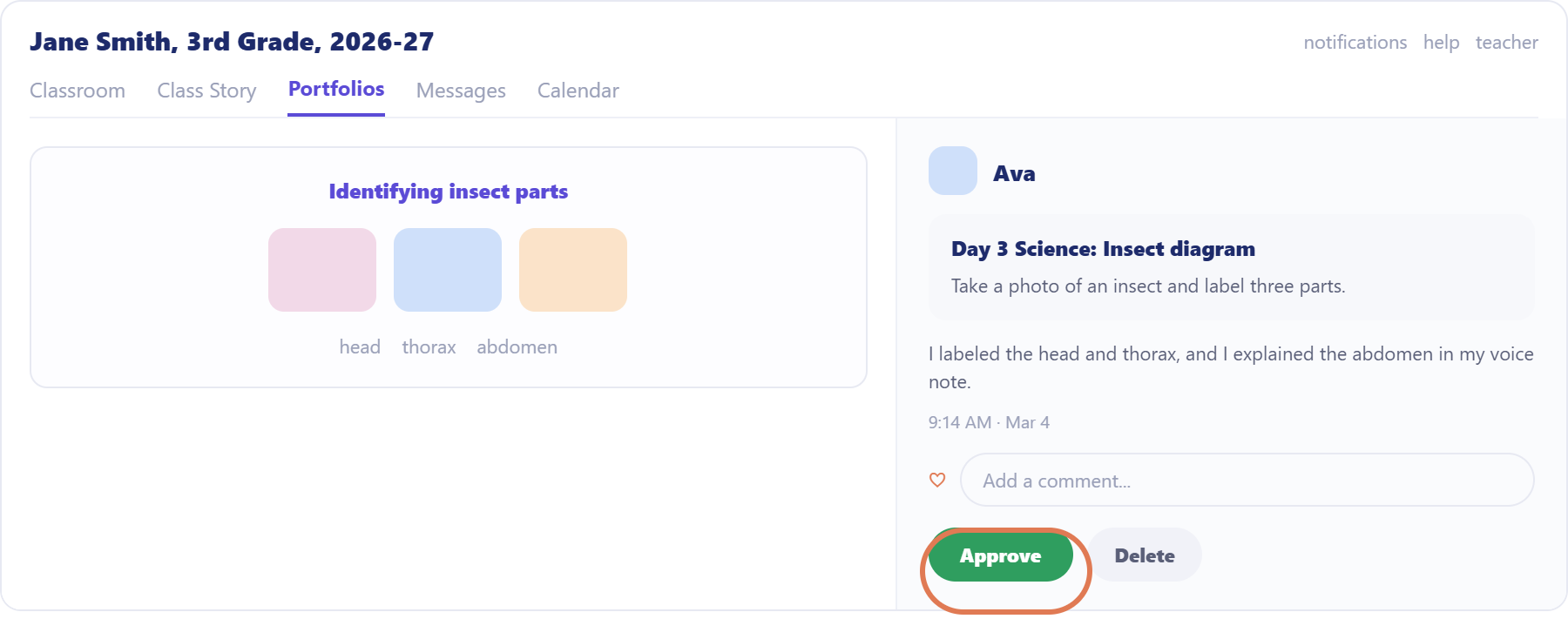
Opening a response displays the work beside the activity it answers, along with anything the student wrote about it. A heart registers that you reviewed the submission, while Add a comment opens a reply the student can answer whenever portfolio comments are enabled, which turns a single submission into a short exchange about the work. Connected family members see those comments once you approve the post.
Where do you find activity ideas?
ClassDojo publishes a library of ready-made activities, listed as Activity ideas on the left side of the Portfolios screen.
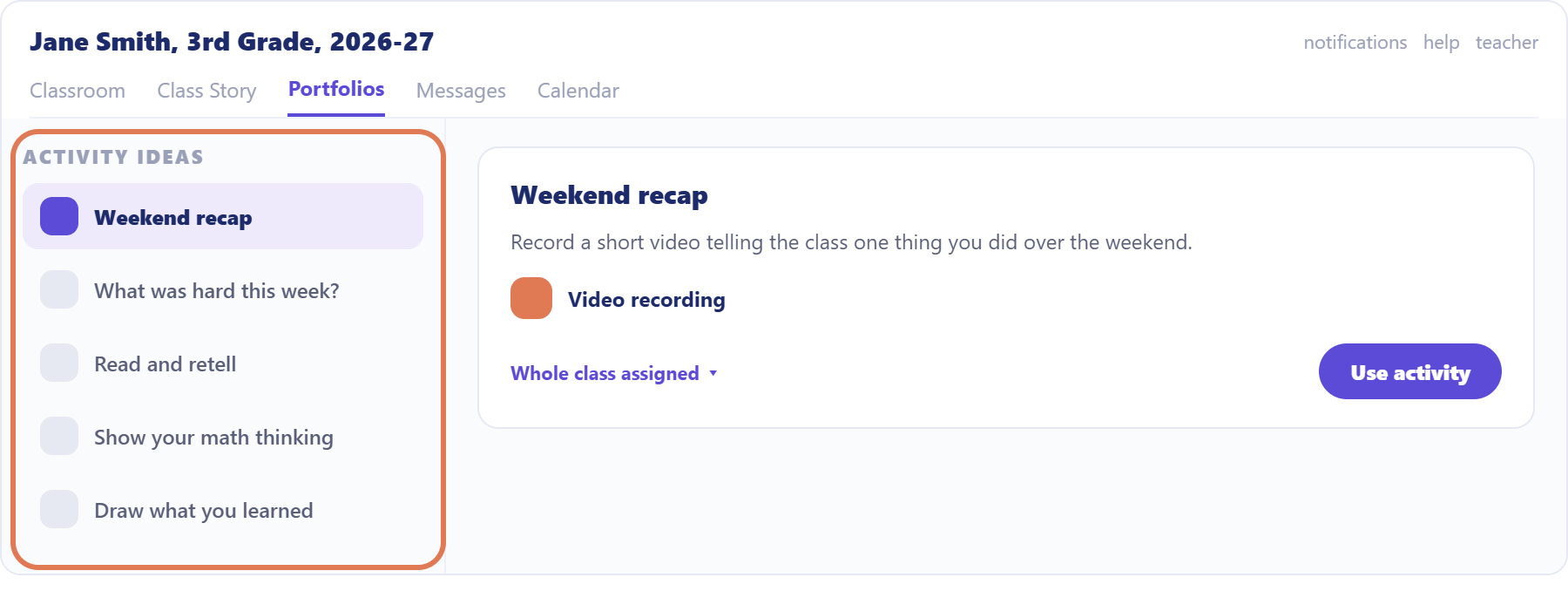
Select an idea to preview it, then select Use activity. The activity opens for editing, so you can rename it, rewrite the instructions, switch the response type or redirect it to different students before Assign to class sends it. Activity ideas appears only after you have assigned at least one activity yourself.
To change an activity later, select its name under Activities, open the blue gear marked Edit, then choose Edit Activity and Save, or Delete Activity and confirm with Delete.
What do families and other students see?
Approved posts reach the student, the family members connected to that student, and the teachers connected to that class. ClassDojo states that a student in more than one class keeps portfolio posts private to the teachers in each class.
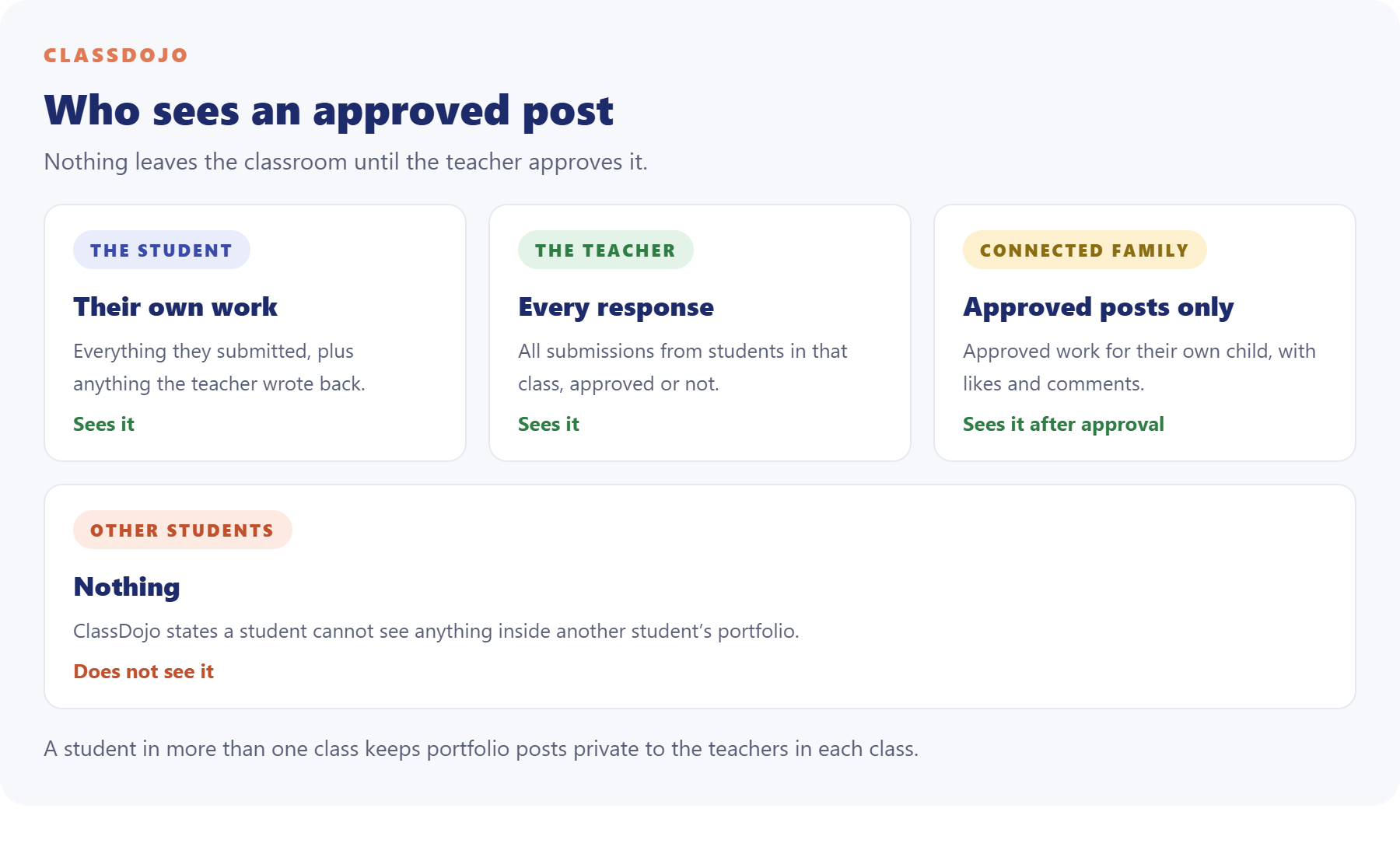
Families can also post to a child’s portfolio from a parent account, which is how work done at home reaches the record. Those posts come to you for approval the same way a student’s do.
Please remember that a shared class text code or class QR code shows every student name on one login screen, and ClassDojo states that a student could select another child’s name and view that child’s portfolio. Individual QR codes or individual links prevent it, and they are worth setting up before portfolios contain anything personal.
Video: How families can post to their student’s Portfolio (1:24)
The parent side of a portfolio post, start to finish.
What are some classroom-ready ideas?
These ideas put a portfolio to work without adding a new routine to your week!
- Assign one reflection a week: A standing Friday activity asking what was hard this week produces a year of self-assessment for about five minutes of class time.
- Photograph work that cannot be collected: A block tower, a science station or a whiteboard solution disappears at cleanup, and a photo response keeps it.
- Let the response type match the student: Assign the same task twice, once as Text entry and once as Video recording, so a student who thinks faster than they write can still answer fully.
- Build the conference folder as you go: Approving work with a conference in mind means the evidence is already gathered when the week arrives.
- Use a drawing activity for a concept check: Asking a class to draw the water cycle shows misconceptions that a multiple choice question hides.
Part 2 of this series covers ClassDojo points and rewards, and a new part runs each Thursday.