
ClassDojo
In this series
- How to Use ClassDojo for Parent Communication
- How to Use ClassDojo Points and RewardsYou are here
- How to Use ClassDojo Student Portfolios
What are ClassDojo Points?
ClassDojo is a free classroom management and family communication platform. You create a class, enter your roster, and ClassDojo assigns every student an illustrated avatar. The class screen arranges those avatars in a grid, each labeled with the student’s name and a running point total.
You can display the class screen on an interactive whiteboard, which gives students a live view of their totals during the lesson. ClassDojo also runs as an app on a phone or tablet, so you can award points and open a report while you circulate.
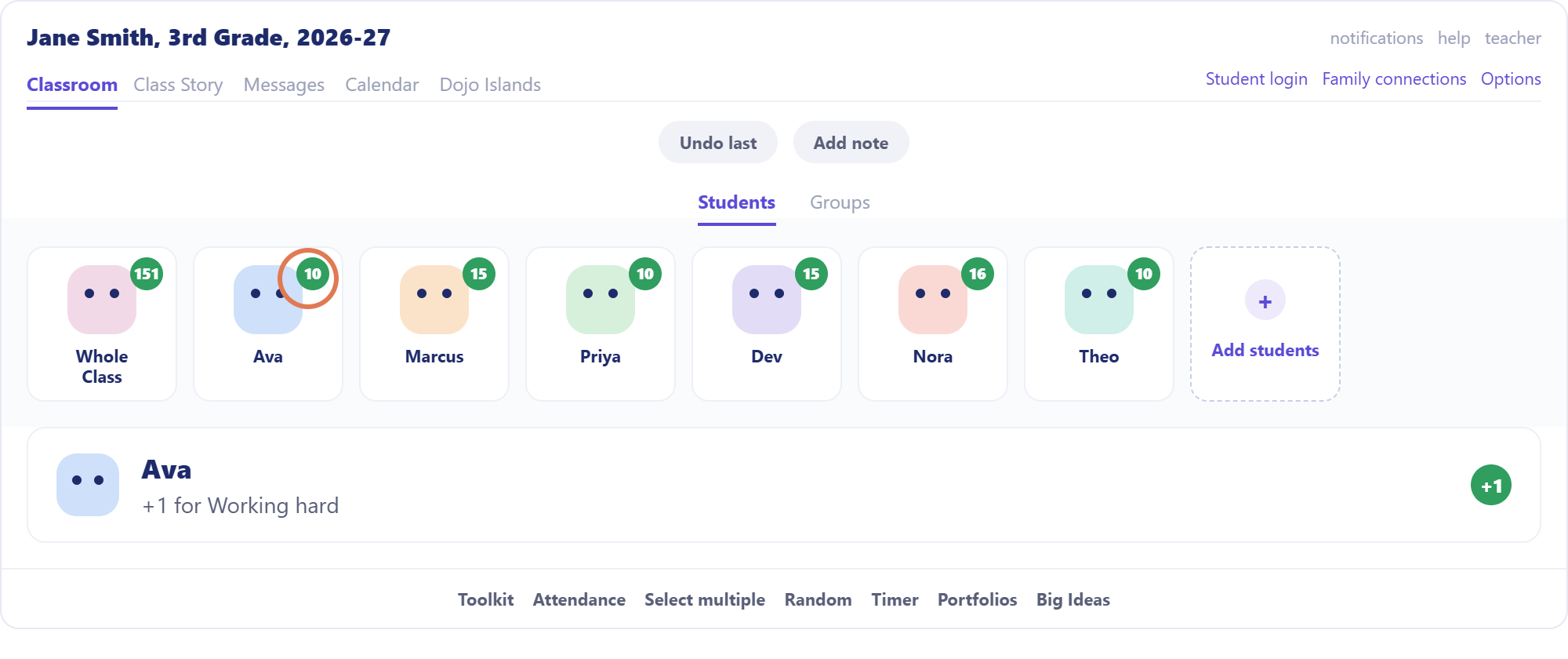
ClassDojo timestamps every award and records both the behavior and the teacher who gave it, and you can attach a note to any of them. The platform retains a year of that history, deleting points older than 12 months on a rolling basis, and you can delete an individual point at any time.
Why use ClassDojo Points?
Points are a positive reinforcement tool, so your attention goes to the behavior you want repeated rather than to the behavior you want stopped. That shifts what students hear from you. Instead of correcting the two who have drifted off task, you recognize the six who have started working, and the rest of the class adjusts without anyone being singled out. Schools operating a positive behavior framework apply the same mechanism to schoolwide expectations. ClassDojo publishes guidance for PBIS schools so a coordinator can review consistent feedback across classrooms.
Timing matters as much as wording. A student who sees their total change on the board knows precisely which behavior earned it, while praise at the end of the day leaves them reconstructing which moment you mean. Younger students follow their avatar closely, so recognition given in the moment registers with that student and signals to the rest of the class what you are looking for.
Precision matters just as much. A behavior labeled “Working hard” identifies exactly what earned the recognition, which a passing “good job” cannot do, and awarding one costs no instructional time.
- Documentation as it happens: ClassDojo timestamps every point, so no behavior log has to be reconstructed weeks later.
- One shared vocabulary: Because you choose the wording, your class and the families reading at home describe the same behaviors the same way.
- A calmer way to redirect: Recognizing the behavior you want shows the rest of the class what to do, so redirection happens by naming success rather than by calling out mistakes.
- Families see it sooner: The record reaches them during the week rather than at a conference months later.
How do you give and set up points?
Points, which ClassDojo also calls Dojo points, are the feedback mechanism. Selecting a student opens a short list of behaviors, and choosing one awards the point and updates that student’s total. ClassDojo calls each behavior on that list a skill, and its help center describes skills as feedback types you can customize to whatever you want to recognize, such as grit or curiosity.
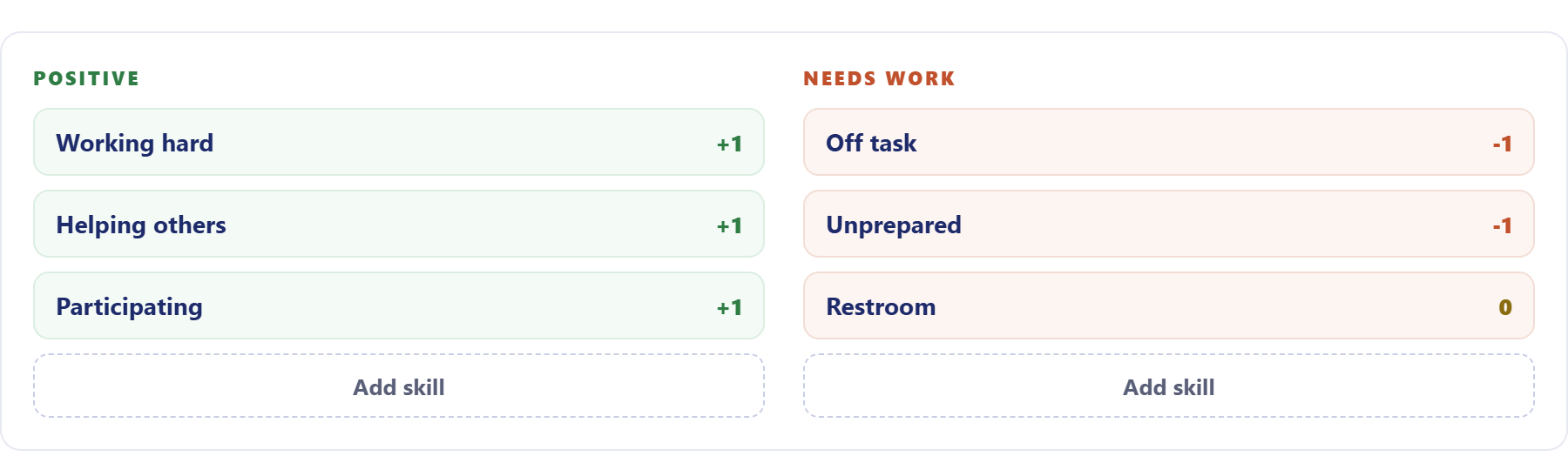
Every skill has a name, an icon and a point value, and ClassDojo supplies a starter set so you can begin on the first day. Skills fall into two categories: positive skills for behavior you want to recognize, and Needs Work skills for behavior you want to redirect. You can reword any skill, change its value, add new ones or delete those that do not fit the way you teach.
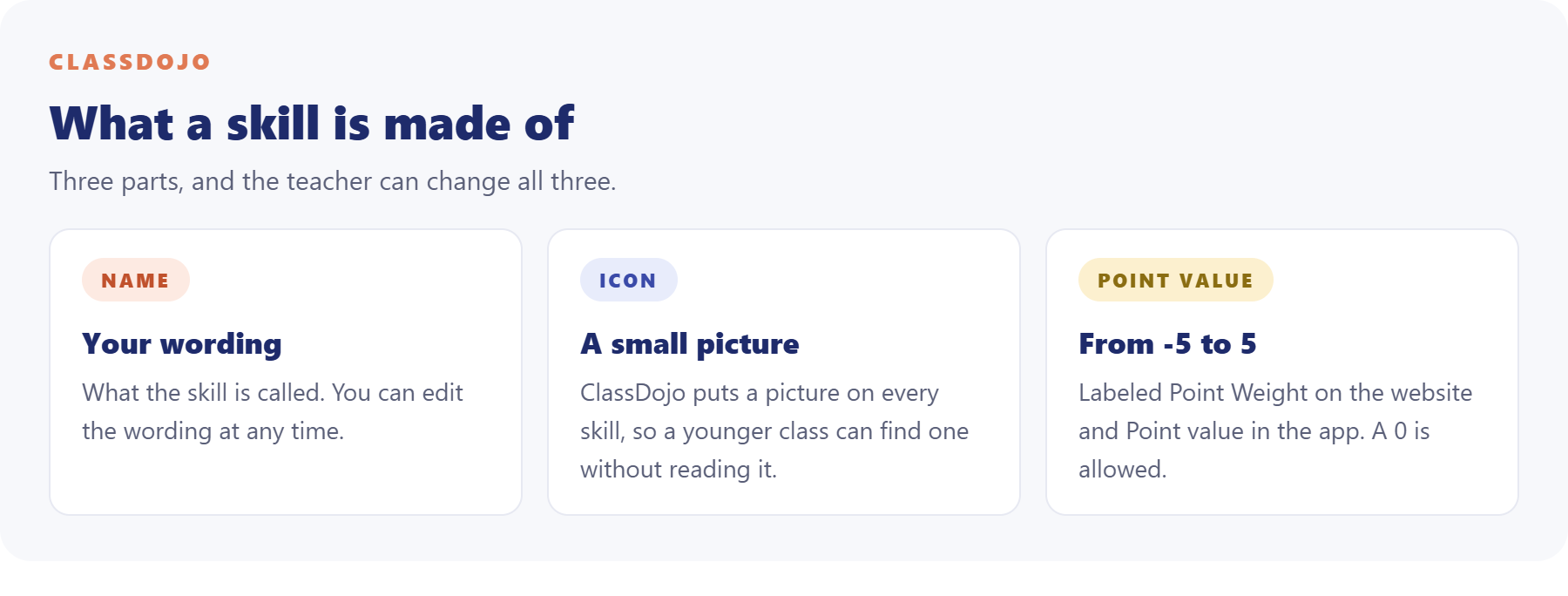
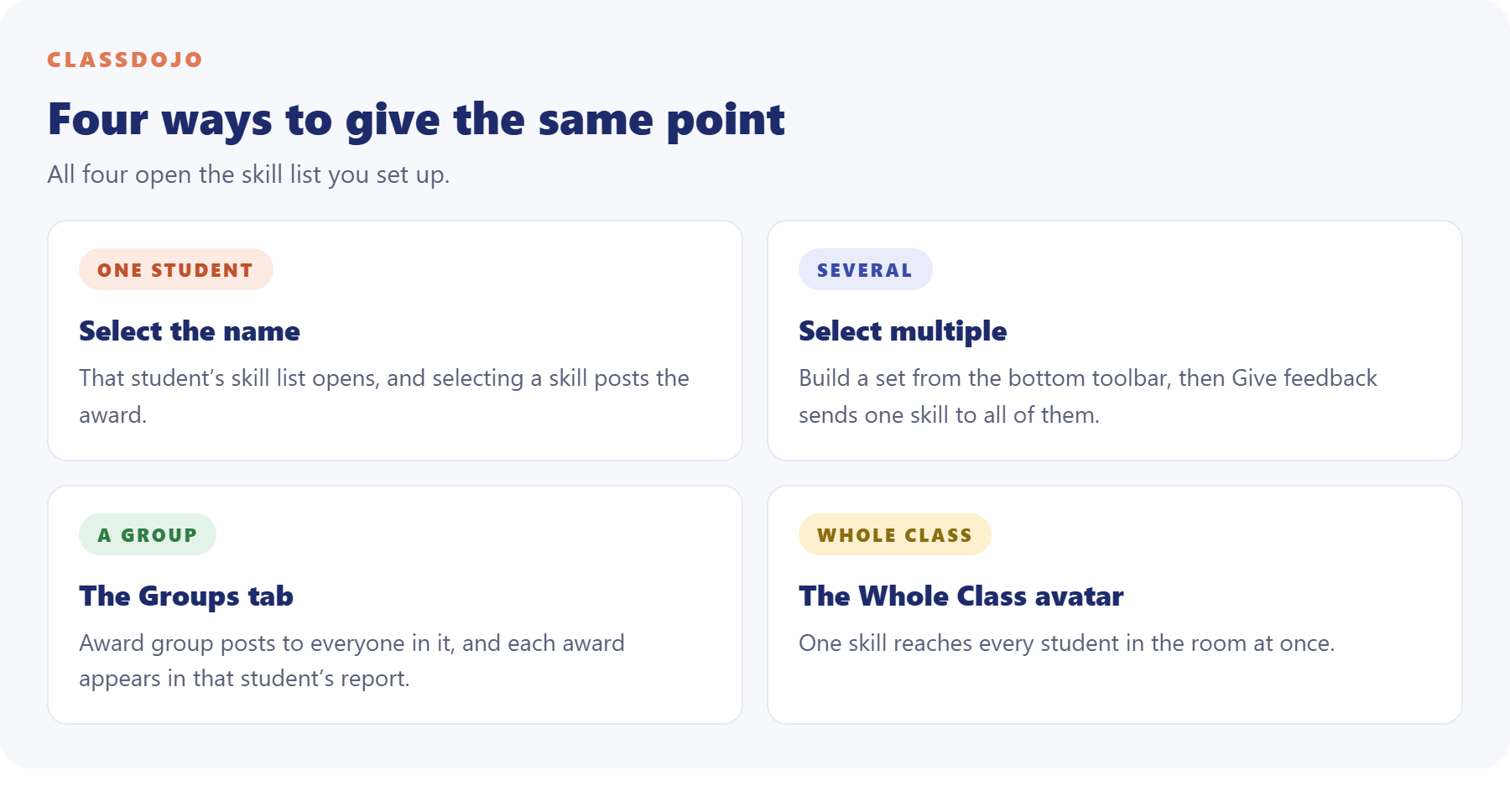
You can recognize one student, several students, a group or the entire class, and all four routes open the same skill list. Recognizing several at once uses Select multiple in the toolbar along the bottom of the class screen.
To build that list, open the class and select Options, then Edit Class, then the Skills tab. In the app, tap the three dot icon and select Edit skills.
Step 1: Which skills should you keep?
ClassDojo has already populated both columns, so review them and decide which ones fit your room. Select any skill and choose Delete to remove the rest. Android labels that option Remove.
Step 2: How do you add a new skill?
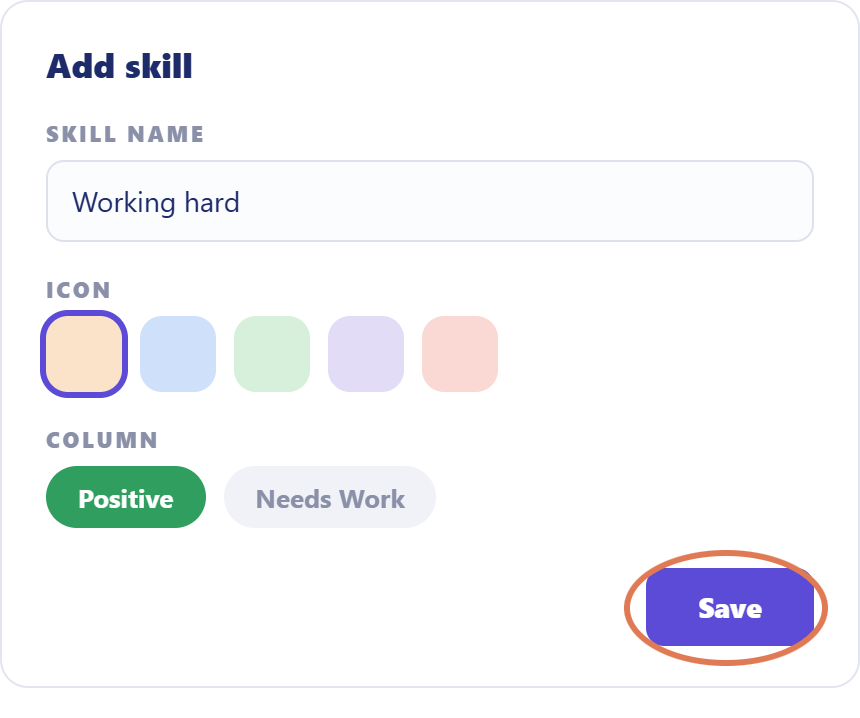
Select Add skill, enter a name and choose an icon, then select Save. The column you choose determines whether it appears among the positive behaviors or the Needs Work behaviors.
Step 3: How do you set the point value?
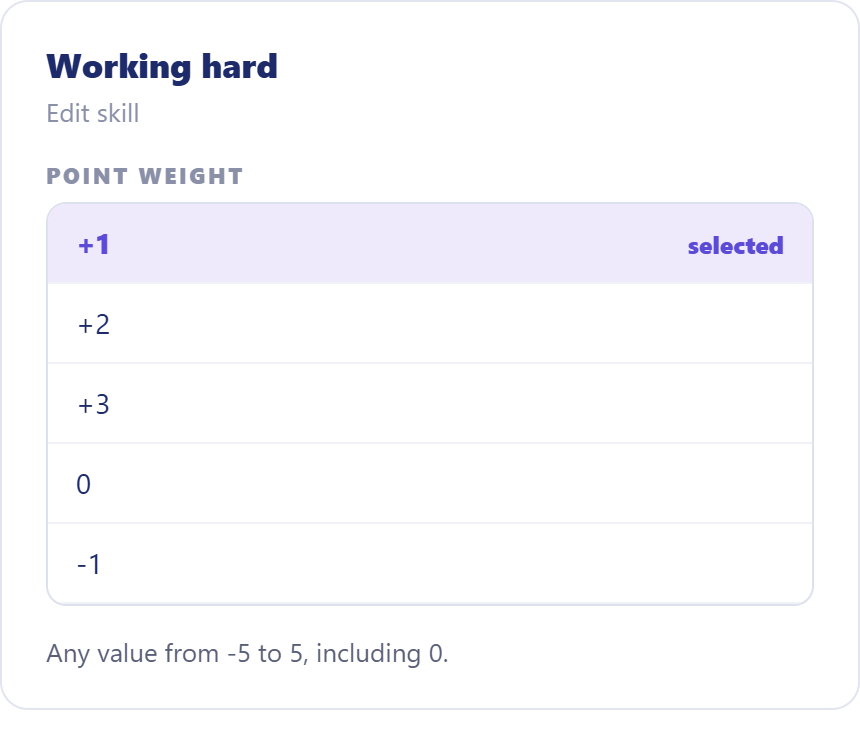
Hover a skill, select Edit, then choose any value from -5 to 5 in the Point Weight menu. Please remember that a skill set to 0 still records the award without changing a total.
Video: ClassDojo Points: Adding, Redeeming, Removing and Resetting (3:32)
ClassDojo’s own walkthrough of adding, redeeming, removing and resetting points.
What happens when you undo, redeem or reset?
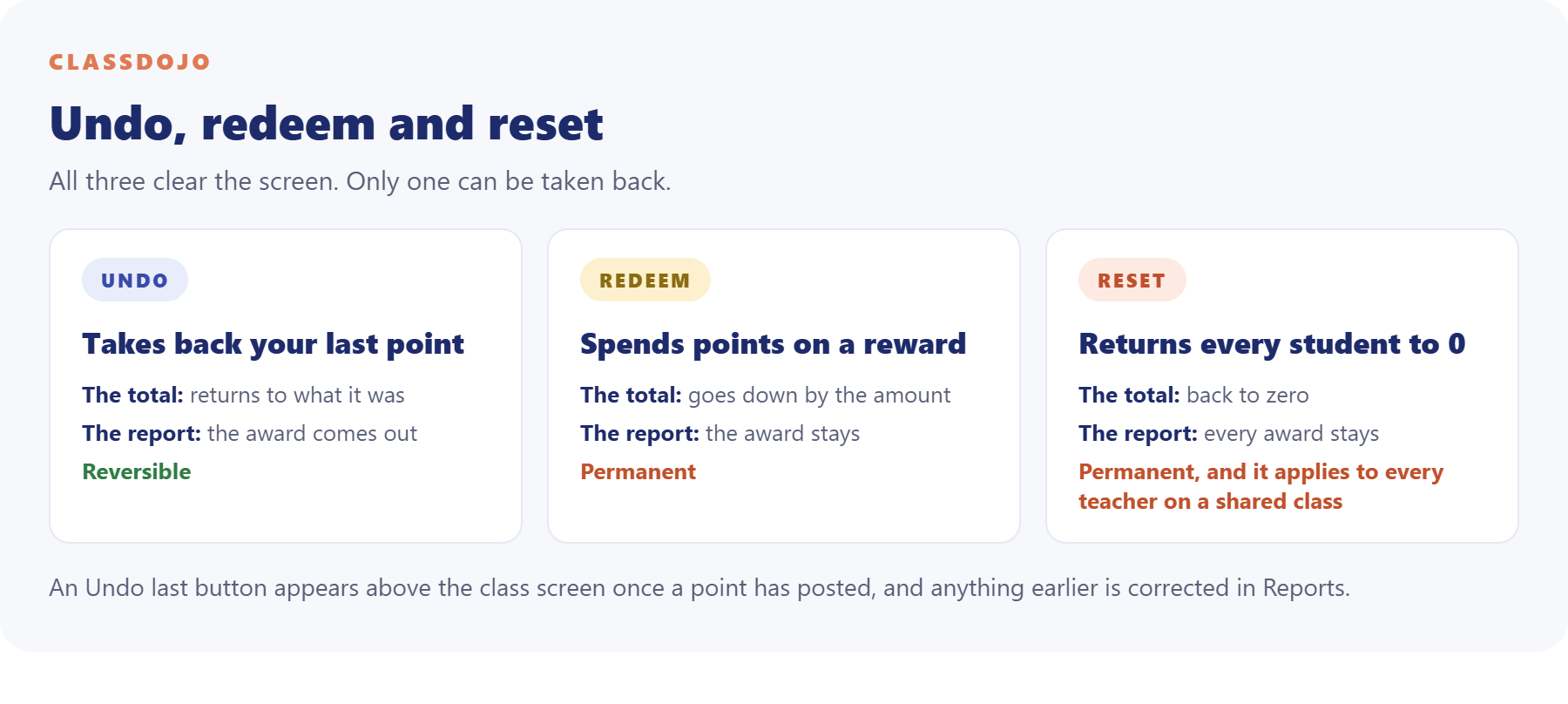
All three clear points from the class screen, but each leaves the record in a different state. Undo is the only one you can reverse, and redeeming or resetting leaves every award in your report.
What can students do with their points?
Redeeming is how a student spends what they have earned. ClassDojo describes it as trading points for small prizes, privileges or special activities, and you supply the prize.
On the website, open your class, select the student, click Redeem points, enter the amount, add a note if you want one, then click Redeem points again. The app follows the same sequence from the student’s name. A student can redeem no more than the balance currently in their bubble, which is what ClassDojo calls the number in the green circle on their avatar, and your point display has to be set to combined for the option to appear.
The redeemed points leave the bubble and remain in your report, where ClassDojo shows the amount and the note to you alone. ClassDojo also includes classroom rewards for Dojo Islands and enables them by default. Each positive point advances a student along a monthly rewards track, and reaching a milestone unlocks a small bundle of building blocks or island decorations to use in Dojo Islands at home. Up to 5 points a day count toward that progress, and the track refreshes each month.
ClassDojo states that these rewards neither spend nor subtract points, and that redeeming or resetting never removes a reward a student has already earned. The track runs before a student ever signs in, and anything unlocked waits for them until they log in. You can disable it with the Enable classroom rewards toggle on the website, under Options, Edit Class, then the Settings tab.
Families who subscribe to ClassDojo Plus can run rewards at home as well. A parent builds a reward from an emoji, a name and a value, and the child redeems against it. Those are home points, and they remain separate from the ones you award in class.
What are schoolwide points?
Schools that want one set of expectations across every classroom can run school points, which have a separate dashboard. ClassDojo states that any verified School Leader, Teacher or Staff member can award them, and that School Leaders and Admins create, edit and delete the school skills and handle redemption.
Points awarded in the school dashboard count toward the school total rather than a student’s class total, while your class points do appear in the school dashboard. A school skill you award inside your class also counts in that student’s class bubble. Students can check their school total on the web, and School Leaders and Admins download the reports.
Video: Schoolwide Points (3:44)
ClassDojo’s own walkthrough of schoolwide points.
What do families and students see?
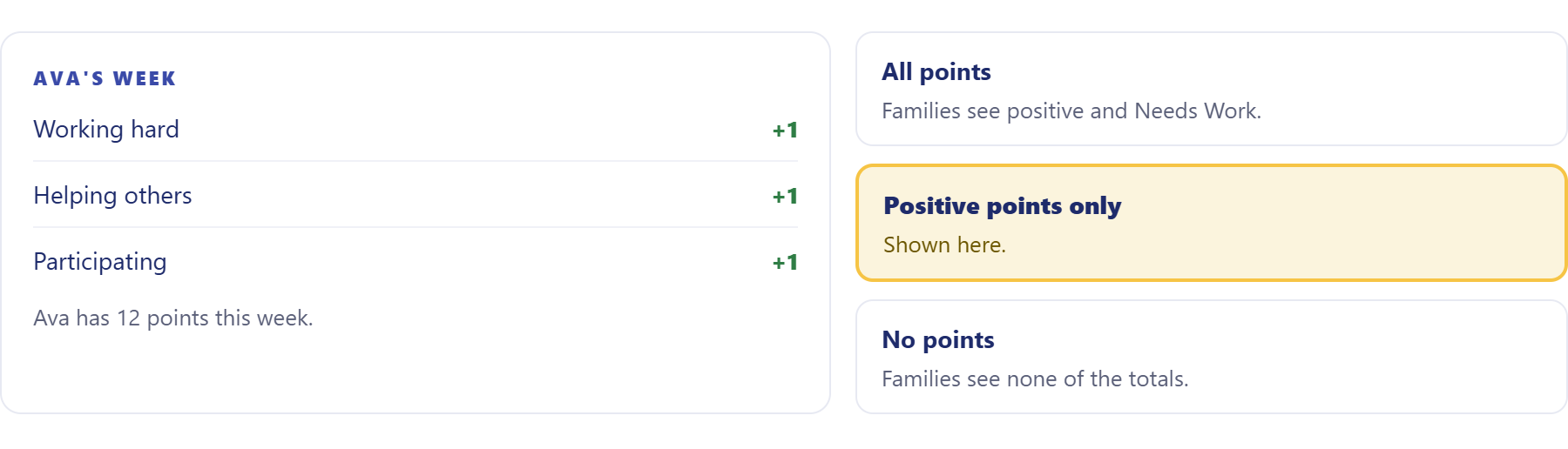
You decide how much of the record families see, one class at a time, under Options, Edit Class, then the Skills tab. Where you share them, parents see the type of point, the time of day, which teacher awarded it and whether it went to the student alone, to a small group or to the whole class, along with any note you attached.
Students reach their points with an access code you distribute, and ClassDojo states that each one sees only their own record unless you project the class screen, which displays totals rather than individual awards.
Your reports are on the website under Options, then View reports, where you can review a student’s history for any date range, print it or export it for a meeting.
Video: Teacher Basics: Classroom Reports (4:26)
ClassDojo’s own walkthrough of classroom reports.
What are some classroom-ready ideas?
These ideas are a quick way to put your skill list to work!
- Trim the list to four or five skills: A short list is faster to tap and easier for students to recognize, and you can add another at any point.
- Match the skills to your posted rules: If your posted rules say “ready to learn,” make that one of your skills so your wall and your skill list use the same language.
- Use a zero point skill for tracking: A skill worth 0 records a restroom trip or a late assignment without changing anyone’s total.
- Decide what points buy before you start: A homework pass, extra recess or first choice at centers all work, and settling this in advance removes the decision from the moment.
Part 1 of this series covers ClassDojo for parent communication, and a new part runs each Thursday.