
QUICK ANSWER
Google Calendar appointment schedules let families book their own parent teacher conference times from a single link, which replaces the back and forth email and the paper sign-up sheet. You define three settings: your available hours, the length of each conference, and the buffer between them. Every booking arrives on your calendar with the family’s name and email already attached. A reserved time is removed from the booking page immediately, which makes double booking impossible. Each booking page supports one meeting type, so in person, video, and phone conferences require three separate booking pages.
What is the benefit of creating Google’s Appointment Schedules for Parent Conferences?
- Every booking arrives on your calendar with the family’s name and email already attached.
- A time slot is removed the moment a family claims it, which takes double bookings off the table.
- Your three booking pages stay in sync with one another. When a family books four o’clock on one page, that time comes off the other two, and the same slot is never claimed twice.
- Families see the times you have open and choose the one that works for them. That spares you a round of emails.
- Families can cancel and rebook themselves, and your calendar updates on its own. Rescheduling is no longer your job.
- Nothing depends on a paper form making it home and back again.
What do the parents see when booking a conference?
Before we get into the setup, here is what you are working toward. This is the page your families open when you send them your link.
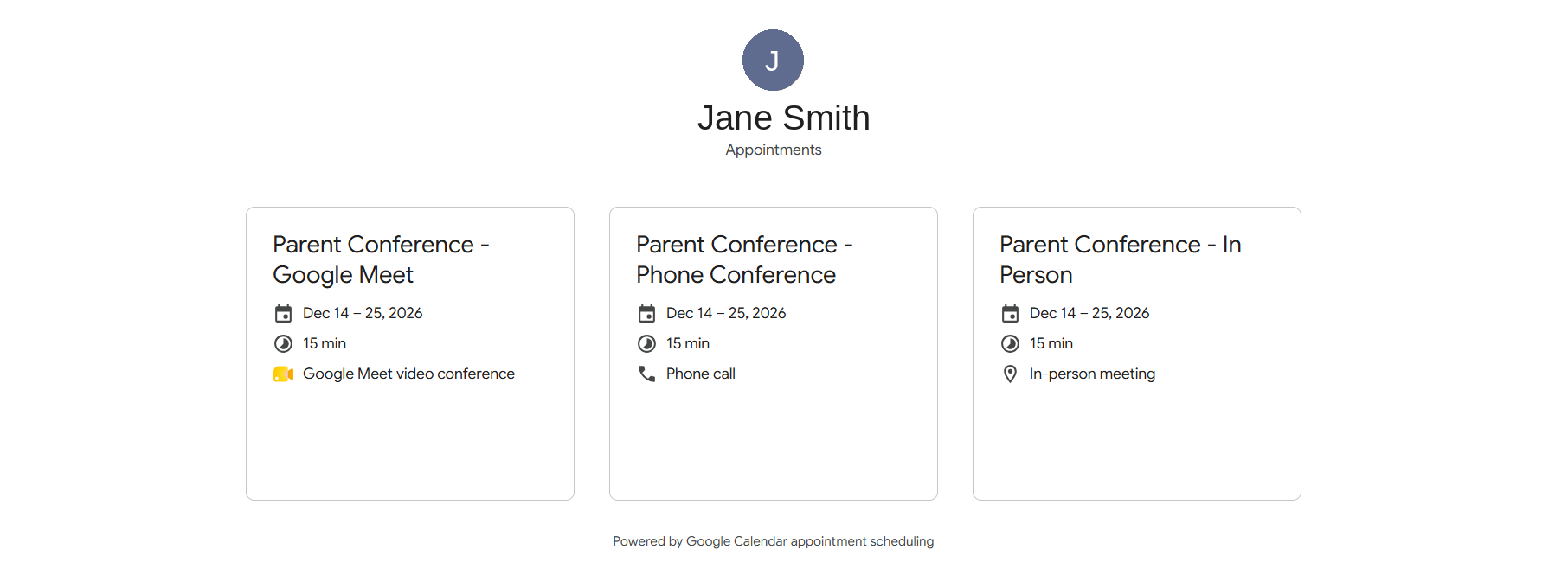
You can offer one kind of conference or several. Three is the usual answer: in person, a Google Meet video call, and a phone call. Google gives you a single All booking pages link that lists them together, which means one link in one message. Your families choose the type of conference first, then the time.
Once they have chosen a type, this is the page they land on: your name, the name of that schedule, how you are meeting, your description, and the times you have open. Nothing else on your calendar is visible to them.
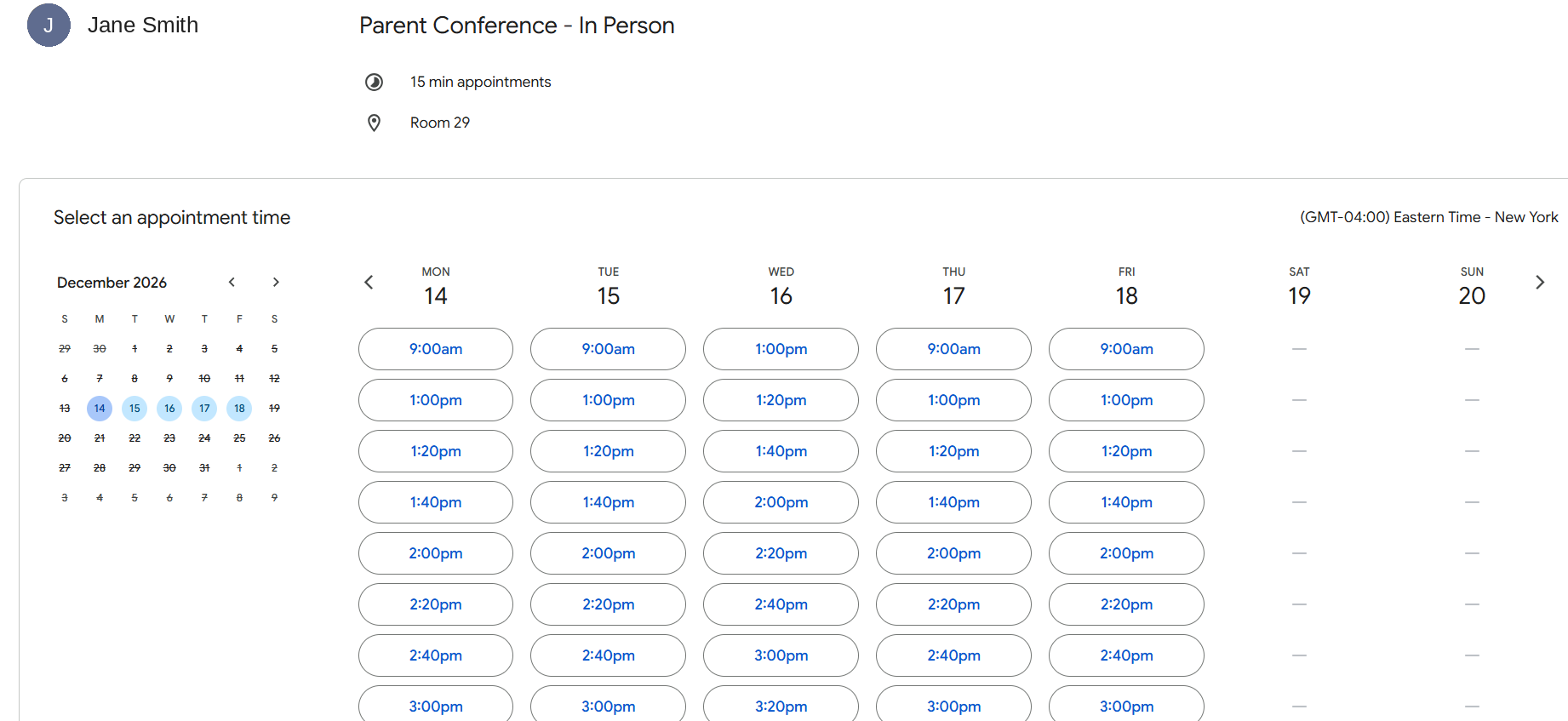
Families select a time and complete three fields: first name, last name, and email address. No Google account is required and there is nothing to sign in to, which means no follow up emails asking how to get in.
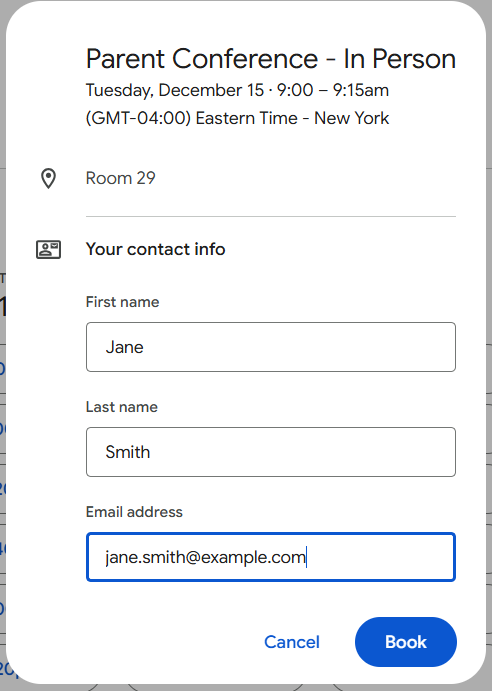
A confirmation email is sent immediately with the appointment time and, for video conferences, the Google Meet link. That is the entire process from the family’s side. The remainder of this post covers how to set it up.
How do I create appointment schedules in Google Calendar?
Step 1: Open up your Google Calendar
Please do this part on a computer. The Calendar app on your phone will show you your bookings, but it cannot build the schedule.
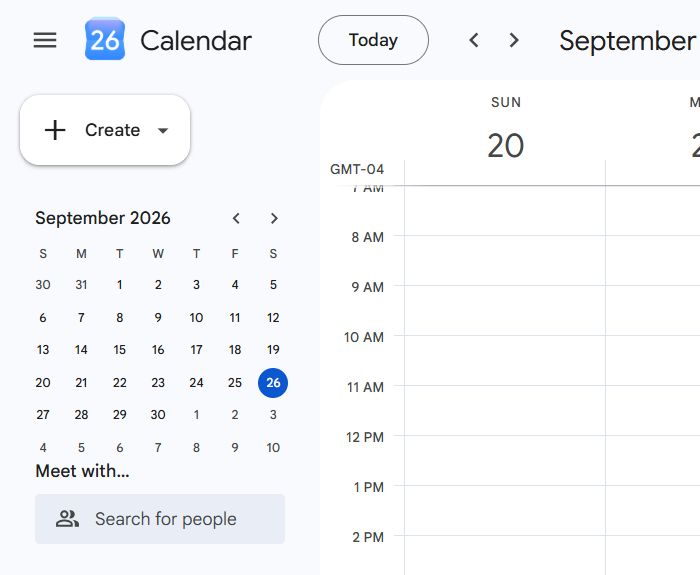
Step 2: Click Create, then Appointment schedule
Click Create at the top left. Appointment schedule is the last item on the menu.
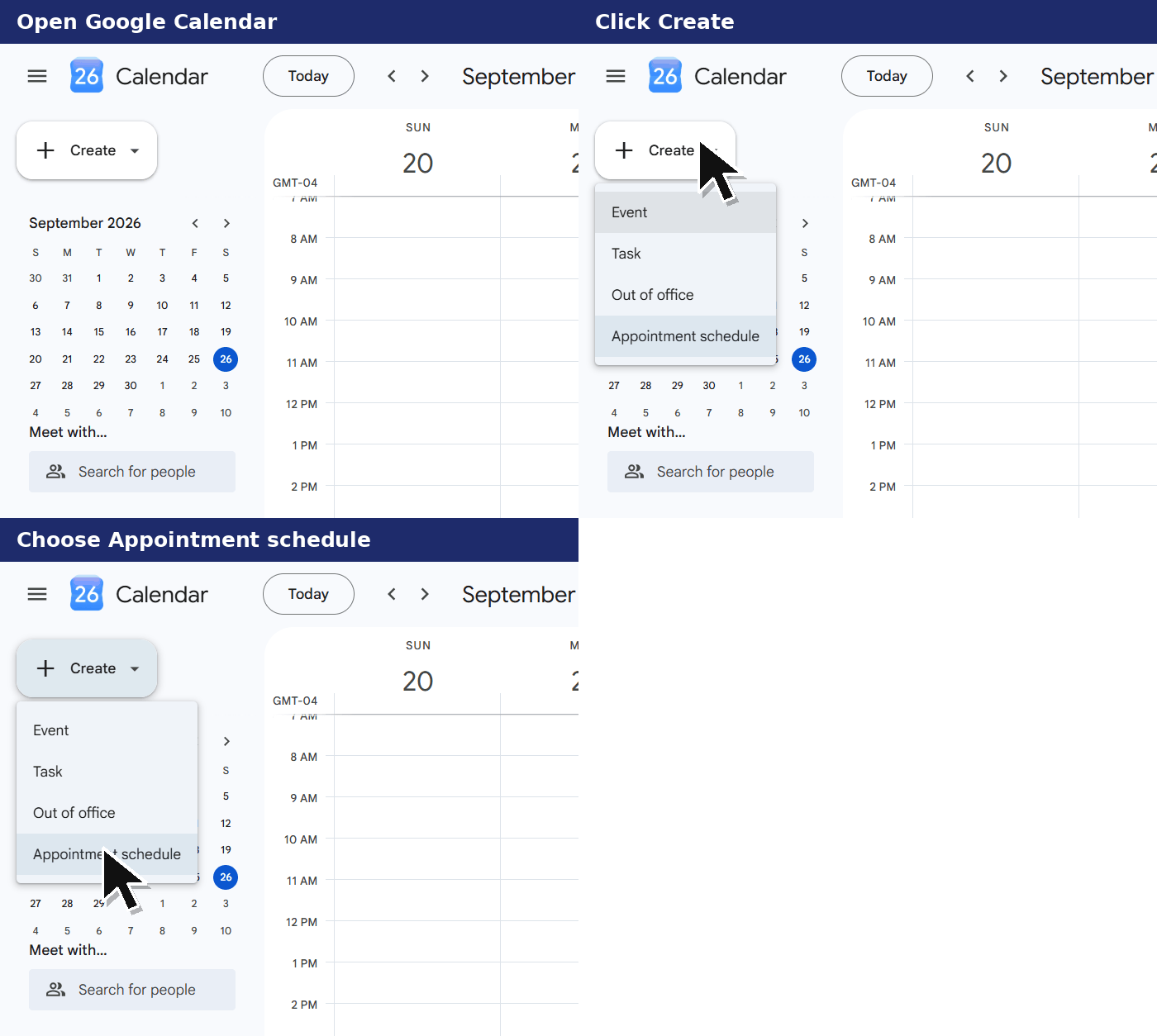
Step 3: Name it, set your length and your hours
Name the schedule so families can tell your three options apart on the booking page, such as Parent Conference, Google Meet. Set the appointment duration to the length of the conference itself, not the conference plus the gap. The gap is a separate setting, covered in step 4.
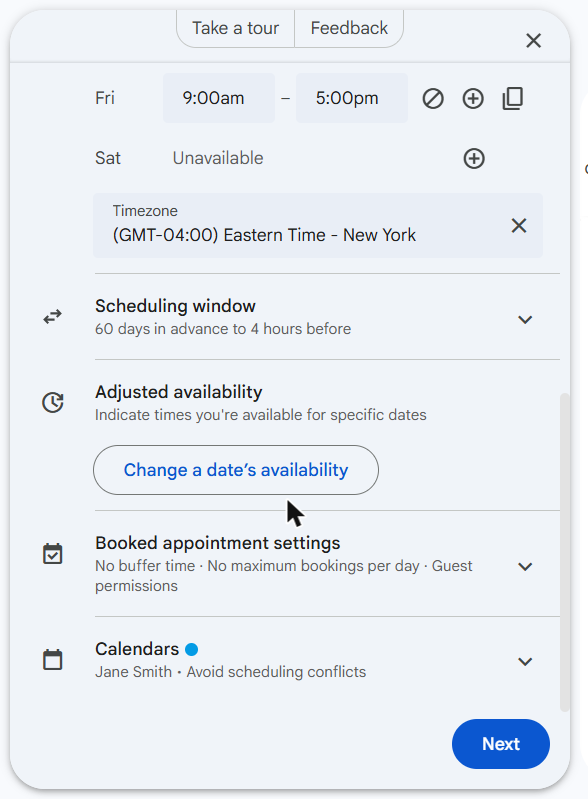
Step 4: Set your scheduling window
This is how far ahead families can book, and how close to the conference they can still book. Please set a minimum notice so nobody books an hour before you walk into the room.
Leave avoid scheduling conflicts turned on at the bottom. That is the setting that keeps anything already on your calendar from being offered.
Step 5: Add your buffer time
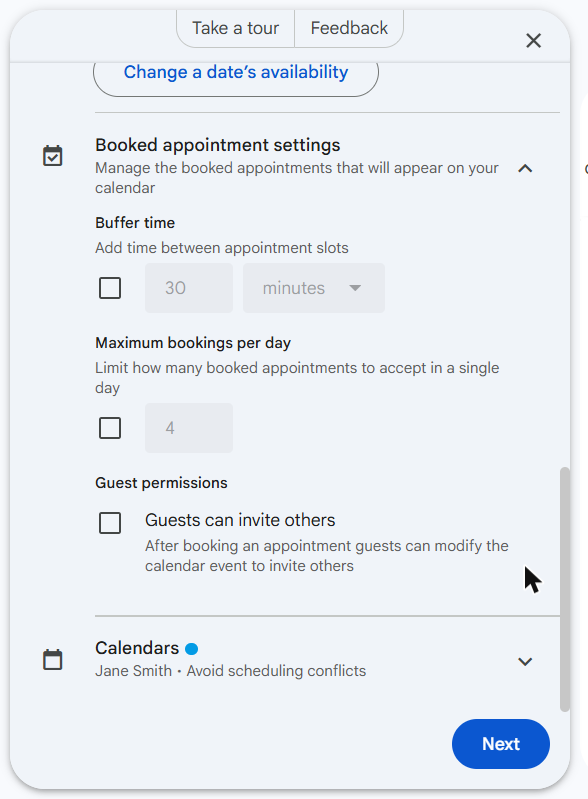
Open Booked appointment settings. A five minute buffer between conferences gives you time to walk one family out, make a quick note, and greet the next one without running behind. Maximum bookings per day is in the same panel. It caps how many conferences you accept in a single day, which is useful when you are available across several evenings but do not want all of them landing on one.
Step 6: Write your description
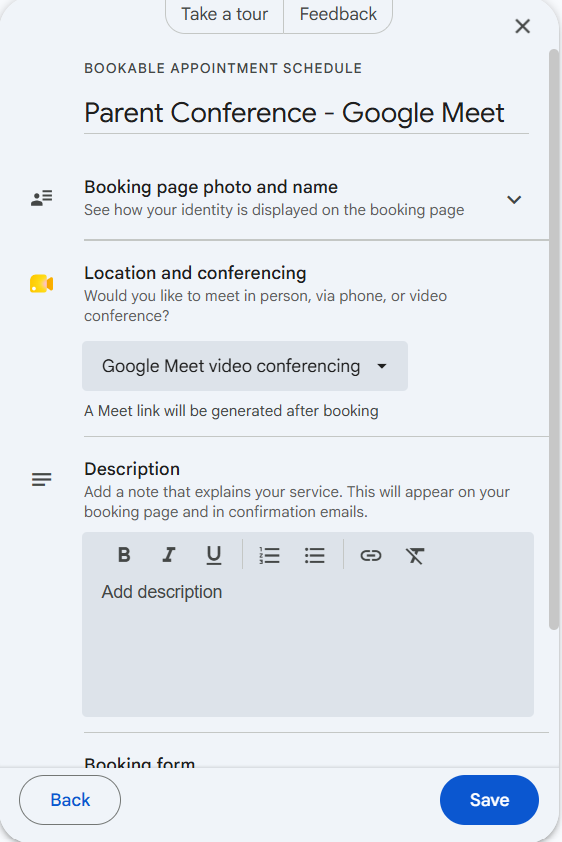
Click Next. Whatever you type here shows on your booking page and travels into the confirmation email, so it answers the questions you would otherwise answer twenty times: where to park; which door to use; whether siblings are welcome; who to ask about an interpreter; and what to do if none of your times work.
Step 7: Choose how you meet
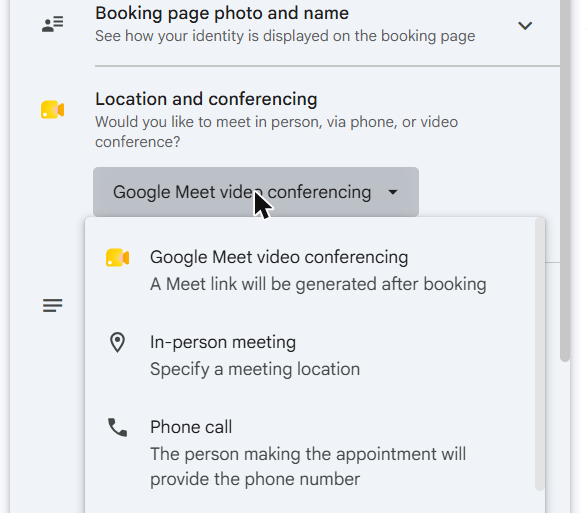
With Phone call, the family types their own number when they book and it arrives on your calendar event, so your number is never published!
Step 8: Save and grab your link
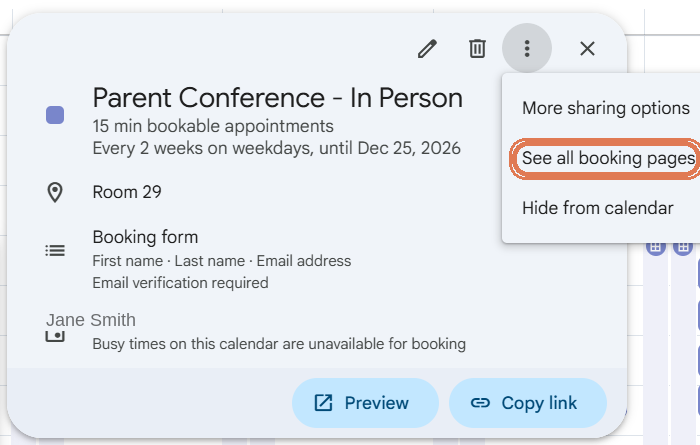
Click Save, then click your schedule on your calendar. This card is where everything you need lives.
Copy link gives you this one page’s link, and Preview shows you the page the way a family sees it. The card also confirms what you set: the length, how often it repeats, the room, and the fields families will fill in.
The three dot menu holds the one that matters most once you have built all three. See all booking pages, circled below, is the combined link that lists every schedule together. That is the single link you send to families.
Building all three needs a school Google Workspace for Education account, which nearly every district uses. A free personal Google account is limited to one booking page, so pick the meeting type you use most. Google documents the feature here.
Step 9: Repeat for your other conference types
If you are offering families more than one way to meet, build those schedules now. A booking page holds a single meeting type, so three options means three schedules. Everything you set in the first one carries over, and the only things you change are the name in step 3 and the meeting type in step 7.
Three booking pages for three kinds of conference
Each booking page carries one meeting type, which is why offering a choice means three schedules on the same calendar. The good news is that you are repeating work you have already done.
Build the first one, then repeat it twice, changing only the name and the meeting type. Please name them by method, for example Parent Conference, In Person; Parent Conference, Google Meet; and Parent Conference, Phone Conference. The name travels into the confirmation email, so a family who picked the wrong one will catch it themselves.
Leave avoid scheduling conflicts on for all three. Every booking becomes a real event on your calendar, and each page checks that calendar before offering a time, so a slot taken on one disappears from the other two. You cannot end up booked three times at four o’clock!
Sharing your links
- Send the All booking pages link if you built more than one schedule. Click any of your schedules on your calendar, open the three dot menu, and choose See all booking pages.
- If you would rather send the three links separately, please label them plainly: come in and sit down with me, meet by video, or I will call you.
- Include your deadline in the same message.
- The link is long, so please shorten it or put it behind a QR code on a half sheet. A phone camera does the typing for you.
- Anyone with the link can book, so when conferences are over, delete or edit the schedule to close the page.
Your conference week
- Preview and test book, then cancel.
- Send your links out with the deadline.
- Two days before the deadline, check your calendar for who has not booked and reach out to those families yourself. No tool does this part for you.
- The morning of, open your calendar in day view. Your whole evening is already in order, with names and emails attached.
Frequently Asked Questions
Is Google Calendar appointment scheduling free?
Most schools already have it as part of the district’s Google plan. If you do not see it on your account, check with your district’s IT administrator.
How many kinds of conference can I offer?
Three: in person, Google Meet video, and phone call. Each booking page uses one of them, so offering all three means three schedules on the same calendar.
Do families need a Google account to book?
No, and that saves you the emails. They open the link, pick a time, and type a name and email. No account, no sign-in, no app.
Can I get booked three times at once if I build three pages?
Not as long as avoid scheduling conflicts is on. Each booking becomes an event on your calendar, and every page checks it before offering a time.
Can families see the rest of my calendar?
No. Your booking page shows your open slots and nothing else. Busy times are simply not offered.
Can I cap how many conferences I do in one evening?
Yes. Maximum bookings per day, under Booked appointment settings, limits how many you accept in a day no matter how many slots your hours allow.
Will reminders go out on their own?
On a paid or school account, yes. Everyone gets a confirmation email when they book. On a free personal account, please send your own reminder the day before.
Can a family reschedule without emailing me?
Yes, and this is the one that saves the most time. Their confirmation email lets them cancel, they rebook from the same link, and the slot they gave up goes back on your page.
More like this: Scholastic Storyvoice, free live author events for your classroom, or browse every Teacher Thursday Timesaver.
Please stay tuned for a new Teacher Thursday Timesaver every Thursday night!